
Oat UI: Semantic HTML UI Library and React Alternative
Oat UI is a lightweight semantic HTML UI library for building fast, browser-native interfaces without React, utility classes, or build tooling.

Browser-native UI components have reached a point of practical maturity. This shift is redefining how modern frontend interfaces can be built—with less abstraction and fewer dependencies.
Imagine building a complete UI without writing a single class name, installing a package, or running a build command.
That’s not a constraint—that’s exactly the use case Oat UI is designed for.
Introduction
Modern frontend development has evolved rapidly-but not always in a way that favors simplicity.
Over the past few years, building even a basic user interface often means choosing from a growing list of tools like React, Tailwind CSS, or other component libraries. While these tools are powerful, they come with trade-offs: complex project setups, dependency management, build pipelines, and an increasing amount of abstraction between the developer and the browser.
What used to be a simple process-writing HTML, adding a bit of CSS, and enhancing it with JavaScript-has gradually turned into configuring bundlers, managing node modules, and structuring applications around frameworks. For beginners, this can feel overwhelming. For experienced developers, it often introduces unnecessary overhead for small or medium-sized projects.
This raises an important question:
Do all interfaces really need this level of complexity?
In many cases, the answer is no.
A large number of applications—such as landing pages, dashboards, internal tools, or personal projects—don’t require a full framework or a heavy toolchain. They need to be fast, maintainable, and easy to build without sacrificing usability or design.
This is where Oat UI comes in.
Oat UI takes a different approach by embracing the capabilities of the browser itself. Instead of adding layers of abstraction, it focuses on semantic HTML, minimal JavaScript, and automatic styling, allowing developers to build clean, functional interfaces without relying on complex setups or large dependencies. That makes it a practical React alternative for static pages, documentation, forms, prototypes, and internal tools where framework-level state management would be unnecessary overhead.
By reducing the gap between what you write and what the browser understands, Oat UI offers a simpler, more direct way to build modern user interfaces—especially for projects where speed, clarity, and minimal overhead matter most.
What is Oat UI?
Oat UI is a lightweight UI library designed to build user interfaces using plain, semantic HTML—without relying on frameworks, class-heavy styling, or complex setups.
Unlike traditional UI libraries, Oat does not require predefined class names or component imports. You simply write standard HTML elements like <button>, <input>, or <details>, and the library automatically applies clean styling and basic interactivity.
It is extremely small in size (around 6–8KB) and comes with zero dependencies, meaning there’s no need for package managers, build tools, or additional libraries. You can include it directly in a browser using a simple <link> and <script> tag, and start building immediately.
With minimal JavaScript and a focus on native browser features, Oat UI keeps development simple, fast, and close to the platform—making it ideal for lightweight applications and quick UI development.
Core Concept Behind Oat UI
The core idea behind Oat UI is to simplify UI development by relying on what the browser already provides instead of adding layers of abstraction. It is built around semantic HTML, meaning developers use standard elements like <button>, <input>, and <details> that already have built-in meaning, accessibility, and behavior. Rather than creating custom components or wrapping everything in complex structures, Oat works directly with these native elements.
Another key concept is automatic styling without class names. Unlike traditional libraries that require predefined classes or utility-based styling, Oat applies styles directly to HTML tags. This keeps the markup clean and reduces the need to remember class conventions or write extra CSS. You simply write normal HTML, and the interface is styled consistently by default.
Oat also emphasizes the use of native browser features instead of heavy JavaScript. Many UI behaviors such as accordions, dialogs, and form handling are already supported by modern HTML elements, so Oat leverages these instead of reimplementing them with custom scripts. As a result, it uses minimal JavaScript, reduces complexity, and keeps applications lightweight.
Overall, the philosophy of Oat UI is to work with the browser rather than against it, enabling developers to build clean, fast, and maintainable interfaces using simple, standard web technologies.
Installation of Oat UI
Installing Oat UI is intentionally simple and very different from traditional UI libraries. There is no package manager, no project initialization, and no build process involved. Instead of installing dependencies, Oat follows a direct browser-based inclusion approach.
1. Add via CDN (Recommended)
The easiest way to install Oat UI is by including its files directly in your HTML using a CDN. You just add a <link> for CSS and a <script> for JavaScript in your <head> section:
<link rel="stylesheet" href="https://unpkg.com/@knadh/oat/oat.min.css">
<script src="https://unpkg.com/@knadh/oat/oat.min.js"></script>
2. Local Installation
If you prefer not to use a CDN, you can download the Oat files and include them locally:
<link rel="stylesheet" href="./oat.css">
<script src="./oat.js"></script>
3. Installation via npm
You can install and use Oat UI in a single step by installing the package and importing its files into your project:
npm install @knadh/oat
import '@knadh/oat/oat.min.css';
import '@knadh/oat/oat.min.js';
Once imported, Oat UI is ready to use—just write semantic HTML, and it will automatically apply styling and basic interactivity without any additional setup.
How Oat UI Works
Oat UI is designed to work directly in the browser with almost no setup. Instead of going through a typical frontend workflow with installations and configuration, it follows a very simple step-by-step approach.
Step 1: Add Oat
You include Oat in your project using a stylesheet and a script file:
<link rel="stylesheet" href="oat.css">
<script src="oat.js"></script>
This step replaces the entire setup process you usually see in modern frameworks. There is no need to initialize a project, install packages, or configure tools like Webpack or Vite. By simply linking these files, Oat becomes available instantly in your browser. This makes it especially beginner-friendly and ideal for quick development.
Step 2: Use HTML
You write standard HTML elements like:
<button>Click</button>
<input placeholder="Name">
There is no need to learn a new syntax, import components, or apply special class names. You are working with plain HTML that every browser understands. This keeps your code clean, readable, and easy to maintain. It also reduces the learning curve compared to libraries that require understanding component structures or utility classes.
Step 3: Automatic Styling and Behavior
Once the HTML is written, Oat automatically applies styling and basic interactivity to those elements.
Oat targets native HTML tags and enhances them with predefined styles and minimal JavaScript. Buttons look consistent, inputs are styled, and elements like dialogs or accordions work without additional code. You don’t need to manually design each component or attach JavaScript for basic interactions.
Comparison with Other UI Libraries
Understanding where Oat UI stands becomes much clearer when you compare it with widely used tools like React, Bootstrap, and Tailwind CSS.
| Feature | Oat UI | React | Bootstrap | Tailwind CSS |
|---|---|---|---|---|
| Approach | Semantic HTML-based | Component-based (JS) | Predefined components | Utility-first styling |
| Setup Required | None | High (npm, build tools) | Low (CDN/npm) | Medium (setup + config) |
| Learning Curve | Very low | High | Low | Medium |
| Styling Method | Automatic (no classes) | CSS/JS styling | Class-based (btn, etc.) |
Utility classes (px-4, bg-blue) |
| Code Complexity | Minimal | High | Medium | Medium–High |
| JavaScript Usage | Very minimal | Heavy | Moderate | Minimal |
| Customization | Limited (CSS variables) | Very high | Moderate | Very high |
| Performance | Very fast (small size) | Depends on app size | Moderate | Good (optimized builds) |
| Dependencies | None | Many (ecosystem) | Few | Some (build tools) |
| Best Use Case | Simple, lightweight apps | Large, dynamic apps | Quick UI with predefined styles | Highly customized UI design |
Oat UI = simplicity and speed
Other libraries = flexibility and control, with added complexity
Choosing between them depends on your project needs. If you want to build fast with minimal setup, Oat is ideal. If you need advanced interactivity or large-scale architecture, other libraries may be more suitable.
Customization in Oat UI
While Oat UI focuses on simplicity and minimalism, it still provides flexible ways to customize the UI without breaking its core philosophy. Instead of complex theming systems or configuration files, Oat relies on standard CSS techniques—mainly CSS variables and style overrides.
CSS Variables (Theming)
Oat exposes its design system through CSS variables (custom properties). These variables control things like:
- Colors (primary, secondary, background)
- Spacing and padding
- Border radius
- Typography
You can override these variables in your own CSS to change the overall look and feel of your application.
Example:
:root {
  --primary: #4f46e5;
  --secondary: #10b981;
  --radius: 10px;
}
Instead of modifying individual components, you change the theme globally in one place.
Overriding Styles
If you want more control, you can directly override styles of specific HTML elements.
Example:
button {
  background: black;
  color: white;
  border-radius: 20px;
You can also target specific sections:
section button {
  font-weight: bold;
}
Extending Components
Oat doesn’t restrict you to predefined components. Since it uses semantic HTML, you can extend or build your own UI patterns by combining elements.
Example (custom card layout):
<article>
  <h3>Custom Card</h3>
  <p>This is a reusable UI block.</p>
  <button>Action</button>
</article>
You can enhance it further with your own CSS:
article {
  padding: 16px;
  border: 1px solid #ddd;
  border-radius: 12px;
}
Now you’ve created a reusable component without a framework.
Customization in Oat UI is based on a simple idea:
Use standard CSS instead of learning a new styling system.
Example Project: Portfolio Built with Oat UI
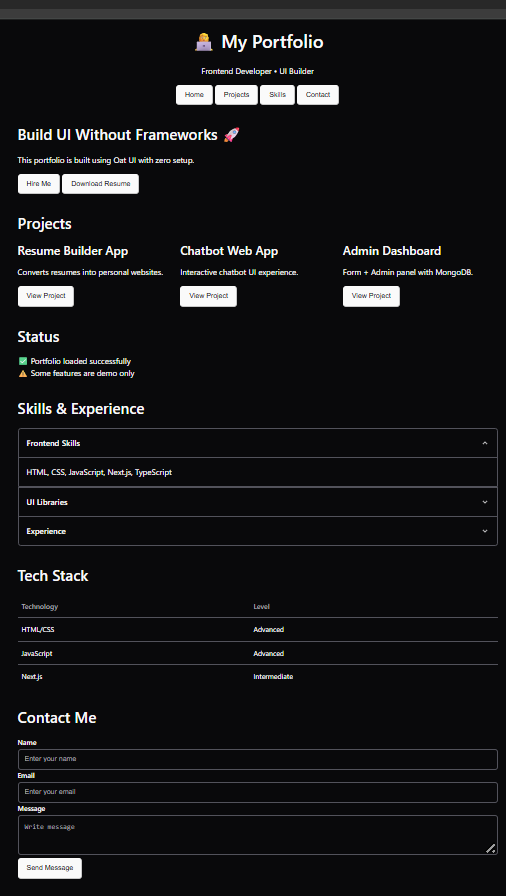
To demonstrate the real-world usage of Oat UI, here’s a complete portfolio example that uses plain HTML + Oat UI to build a fully functional interface—without frameworks or heavy setup
Source code:
<!DOCTYPE html>
<html lang="en">
<head>
<meta charset="UTF-8" />
<title>Oat Portfolio</title>
<!-- Oat UI -->
<link rel="stylesheet" href="https://unpkg.com/@knadh/oat/oat.min.css" />
<script src="https://unpkg.com/@knadh/oat/oat.min.js"></script>
<style>
body {
max-width: 1000px;
margin: auto;
padding: 20px;
}
header {
text-align: center;
margin-bottom: 40px;
}
section {
margin-bottom: 40px;
}
.grid {
display: grid;
grid-template-columns: repeat(auto-fit, minmax(250px, 1fr));
gap: 16px;
}
footer {
text-align: center;
margin-top: 40px;
opacity: 0.7;
}
</style>
</head>
<body>
<!-- 🔹 HEADER -->
<header>
<h1>👩💻 My Portfolio</h1>
<p>Frontend Developer • UI Builder</p>
<nav>
<button>Home</button>
<button>Projects</button>
<button>Skills</button>
<button>Contact</button>
</nav>
</header>
<!-- 🔹 HERO -->
<section>
<h2>Build UI Without Frameworks 🚀</h2>
<p>
This portfolio is built using Oat UI with zero setup.
</p>
<button>Hire Me</button>
<button class="secondary">Download Resume</button>
</section>
<!-- 🔹 PROJECTS -->
<section>
<h2>Projects</h2>
<div class="grid">
<article>
<h3>Resume Builder App</h3>
<p>Converts resumes into personal websites.</p>
<button>View Project</button>
</article>
<article>
<h3>Chatbot Web App</h3>
<p>Interactive chatbot UI experience.</p>
<button>View Project</button>
</article>
<article>
<h3>Admin Dashboard</h3>
<p>Form + Admin panel with MongoDB.</p>
<button>View Project</button>
</article>
</div>
</section>
<!-- 🔹 ALERTS -->
<section>
<h2>Status</h2>
<div class="alert success">✅ Portfolio loaded successfully</div>
<div class="alert warning">⚠️ Some features are demo only</div>
</section>
<!-- 🔹 ACCORDION -->
<section>
<h2>Skills & Experience</h2>
<details open>
<summary>Frontend Skills</summary>
<p>HTML, CSS, JavaScript, Next.js, TypeScript</p>
</details>
<details>
<summary>UI Libraries</summary>
<p>Oat UI, ShadCN, Magic UI</p>
</details>
<details>
<summary>Experience</summary>
<p>Navya AI Pvt Ltd — UI Development</p>
</details>
</section>
<!-- 🔹 TABLE -->
<section>
<h2>Tech Stack</h2>
<table>
<thead>
<tr>
<th>Technology</th>
<th>Level</th>
</tr>
</thead>
<tbody>
<tr>
<td>HTML/CSS</td>
<td>Advanced</td>
</tr>
<tr>
<td>JavaScript</td>
<td>Advanced</td>
</tr>
<tr>
<td>Next.js</td>
<td>Intermediate</td>
</tr>
</tbody>
</table>
</section>
<!-- 🔹 FORM -->
<section>
<h2>Contact Me</h2>
<label>Name</label>
<input placeholder="Enter your name" />
<label>Email</label>
<input type="email" placeholder="Enter your email" />
<label>Message</label>
<textarea placeholder="Write message"></textarea>
<br />
<button onclick="openModal()">Send Message</button>
</section>
<!-- 🔹 MODAL -->
<dialog id="modal">
<h3>🎉 Success</h3>
<p>Your message has been sent!</p>
<button onclick="closeModal()">Close</button>
</dialog>
<!-- 🔹 FOOTER -->
<footer>
<hr />
<p>Built with Oat UI 🌿</p>
</footer>
<script>
function openModal() {
document.getElementById("modal").showModal();
}
function closeModal() {
document.getElementById("modal").close();
}
</script>
</body>
</html>
Output:
Performance Perspective
When evaluating Oat UI, performance is one of its strongest advantages. Unlike modern frameworks that introduce multiple layers of abstraction, Oat keeps things close to the browser, resulting in faster load times, smaller bundle sizes, and minimal JavaScript overhead
Load Time
Oat UI loads almost instantly because it consists of a very small CSS and JavaScript file. Since there is no build process or large runtime, the browser can render the UI as soon as the HTML is parsed.
In contrast, applications built with React often require:
- Loading large JavaScript bundles
- Parsing and executing framework code
- Hydrating components before interaction
Bundle Size
Oat UI is extremely lightweight (around 6–8KB total), which makes it ideal for performance-critical applications.
Compare this with React:
- React + ReactDOM alone can be 100KB+ (minified)
- Real-world apps often reach hundreds of KBs or even MBs after adding dependencies
No JavaScript Overhead
Oat uses minimal JavaScript and relies heavily on native HTML features. This means:
- No virtual DOM
- No component lifecycle management
- No state reconciliation
Most UI behavior (like accordions or dialogs) is handled by the browser itself.
In contrast, React:
- Uses a virtual DOM
- Continuously manages UI updates
- Requires JavaScript execution for rendering and interaction
| Aspect | Oat UI | React |
|---|---|---|
| Load Time | Very fast | Moderate to slow |
| Bundle Size | ~6–8KB | 100KB+ (base) |
| JavaScript Usage | Minimal | Heavy |
| Rendering | Native browser | Virtual DOM |
| Setup Overhead | None | High |
Applying These to Oat UI vs React
When evaluating Oat UI against React, these concepts become very clear—especially based on real testing.
Oat UI 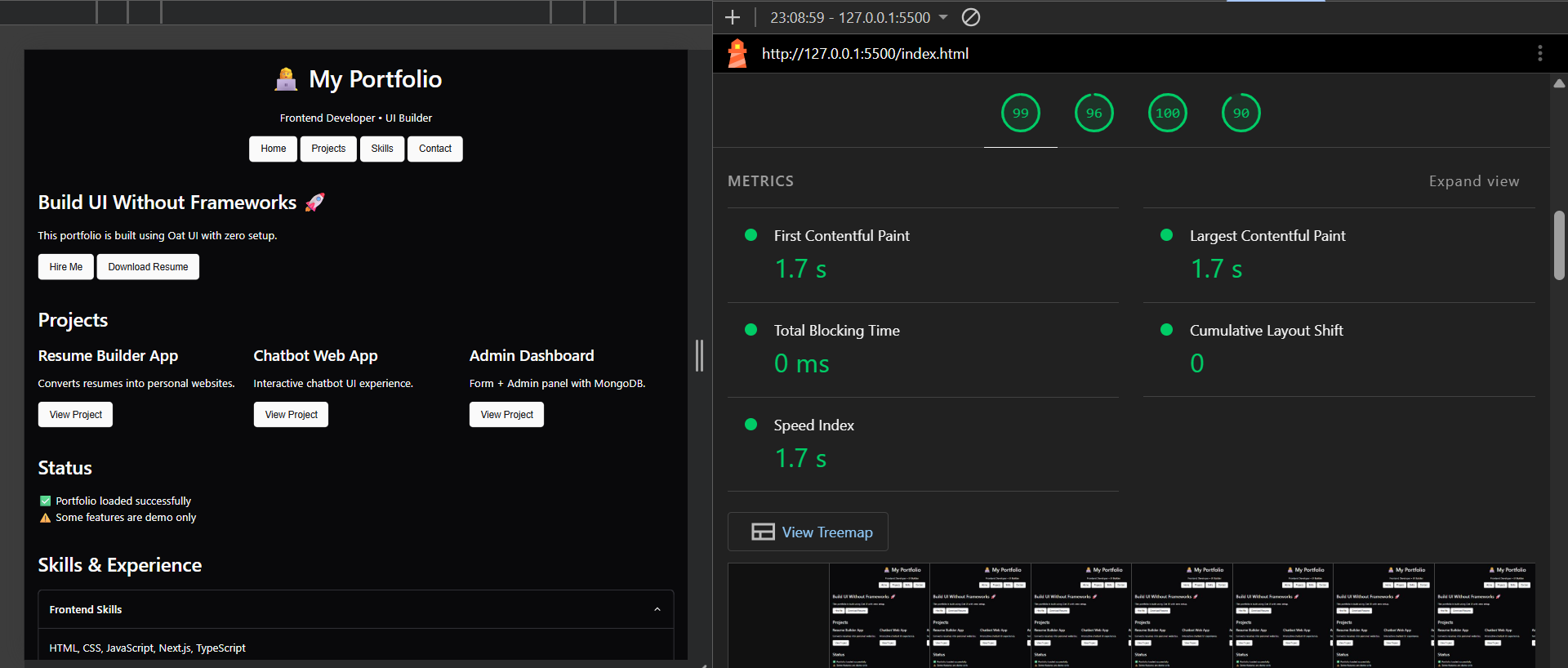 | React 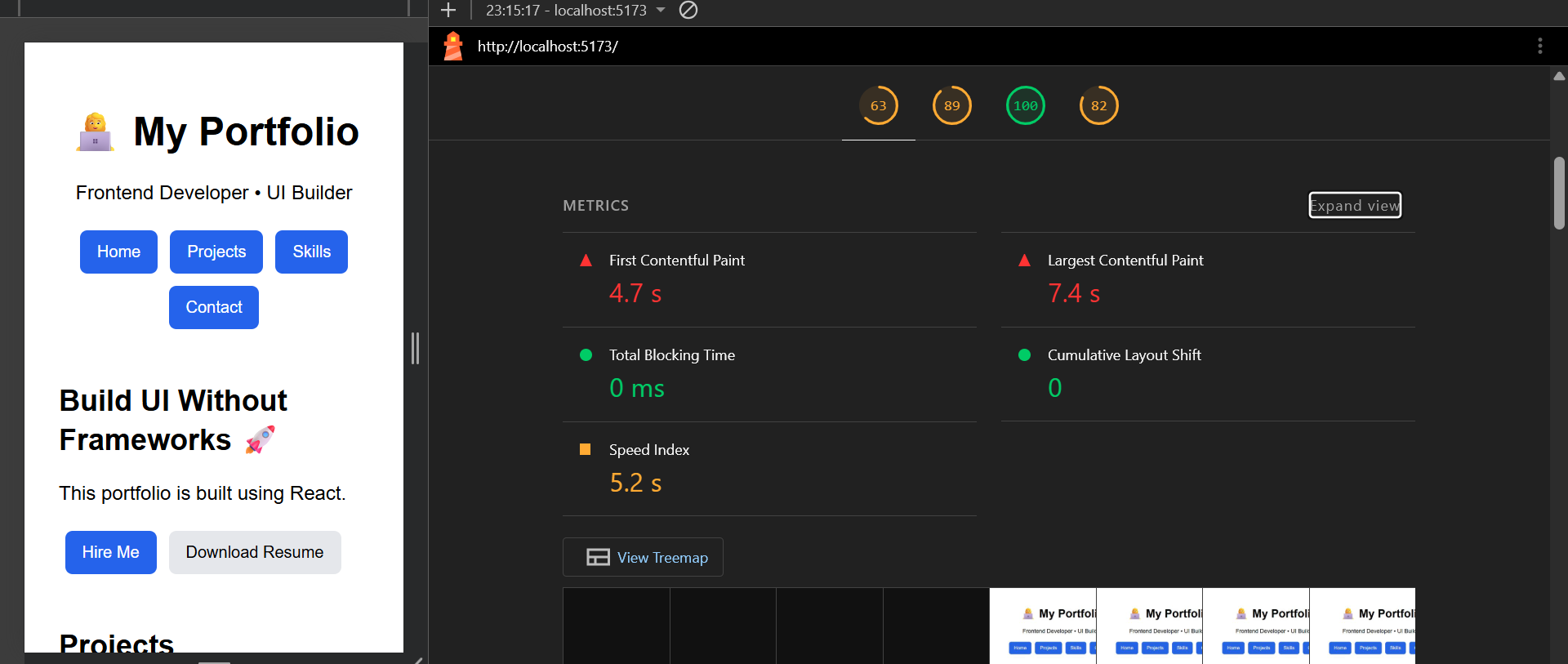 |
|---|
| Aspect | Oat UI | React |
|---|---|---|
| Load Time (FCP) | ~1.7s | ~4.7s |
| Bundle Size | ~6–8KB | 100KB+ (base) |
| JavaScript Usage | Minimal | Heavy |
| Rendering | Native browser | Virtual DOM |
| Total Blocking Time | 0 ms | Higher |
When NOT to Use Oat UI
While Oat UI is excellent for simplicity and performance, it’s important to understand its limitations. Using it in the wrong scenarios can actually slow you down instead of helping.
Complex Applications
Oat UI is not designed for highly complex applications that require:
- Deep component hierarchies
- Advanced state management
- Dynamic UI updates across multiple views
In such cases, frameworks like React are more suitable because they provide structured ways to manage components, state, and data flow.
Real-Time or Highly Interactive UI
If your application depends on:
- Real-time updates (chat apps, live dashboards)
- Frequent UI re-rendering
- Complex event handling
Oat UI falls short because it does not include a reactive system or state management layer.
Large-Scale Systems
For enterprise-level applications that require:
- Scalability
- Maintainable architecture
- Team collaboration with structured codebases
Oat UI may not be ideal. It lacks conventions for organizing large codebases, reusable components, and modular architecture.
Final Thoughts
After exploring Oat UI, one thing becomes clear—it is not trying to compete with full-scale frameworks, and that’s exactly its strength.
In a frontend ecosystem filled with complex tools, build pipelines, and heavy abstractions, Oat takes a step back and focuses on what the web already does well. It embraces semantic HTML, minimal JavaScript, and native browser capabilities, proving that not every interface needs layers of complexity to be effective.
From a practical perspective, Oat feels refreshing. It removes friction from development—no setup, no dependencies, no mental overhead of managing components or class systems. For projects where the goal is to build quickly, keep things maintainable, and deliver clean UI, Oat is not just sufficient—it’s efficient.
However, its minimalism is also its boundary. It doesn’t aim to solve problems related to large-scale architecture, real-time interactivity, or complex state management. And that’s okay. Tools don’t need to do everything—they need to do the right things well.
👉 In my view, Oat UI fits perfectly into a space that many developers overlook: simple, fast, and purposeful development. It reminds us that sometimes the best solution is not adding more tools, but using fewer—more effectively.
Choose tools based on problem, not trend.
Not every project needs a framework. Sometimes, the browser—and a lightweight layer like Oat—is more than enough.
If you are choosing UI architecture for a production AI product or internal tool, read our software design guide for humans and agents or talk to NavyaAI about building fast, maintainable interfaces around AI workflows.